

A dashboard can be customized by adding, moving and removing widgets. Hover over any widget to move, edit or delete it. To resize a widget, click the lower right corner and drag it to the desired widget size. Click the display icon in the upper right corner to open a dashboard in full view.
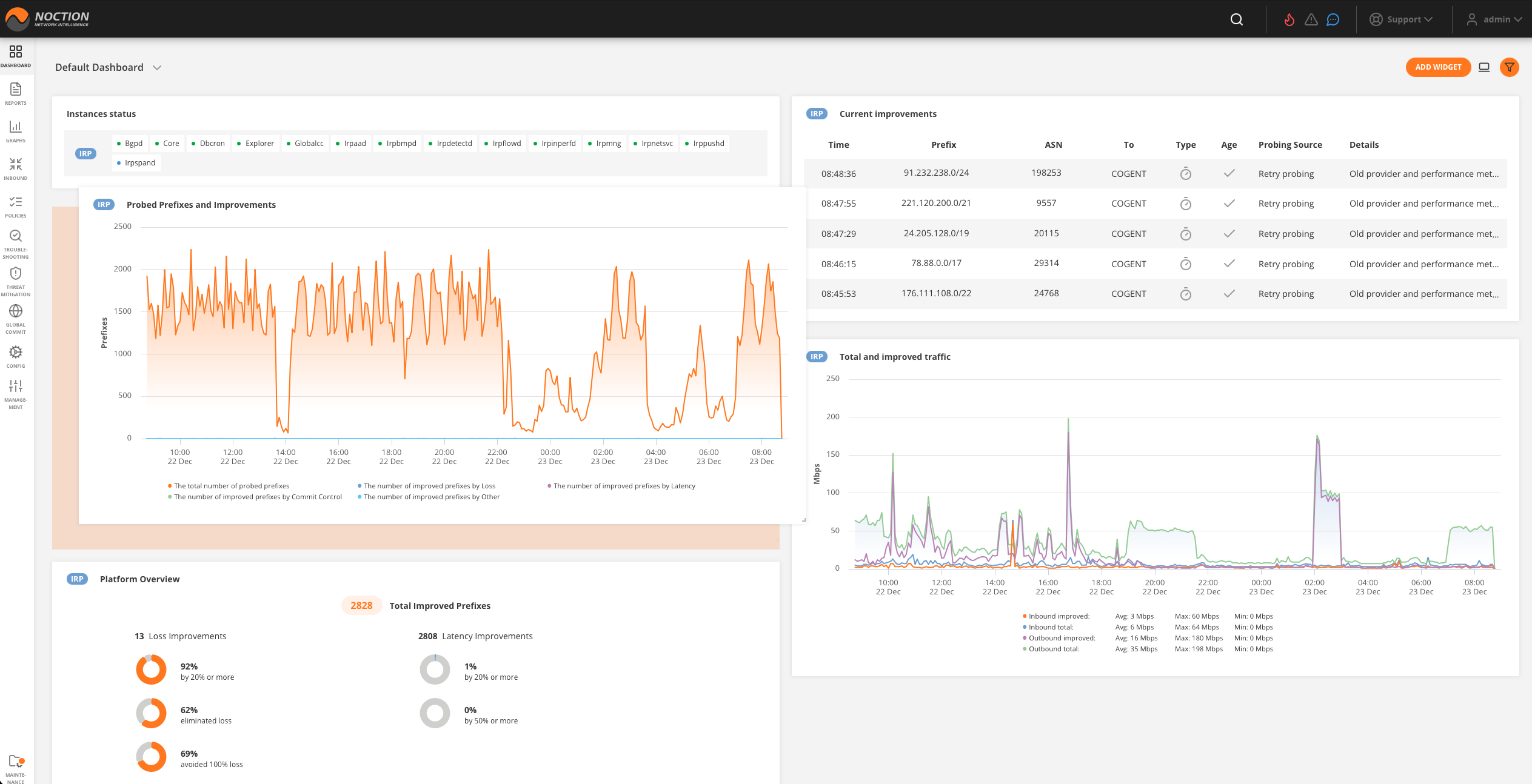
Figure 3.3.4: Rearranging Widgets on Dashboards
Use the ”ADD WIDGET” function available on each dashboard to see the library of existing widgets and place the desired ones on a dashboard.
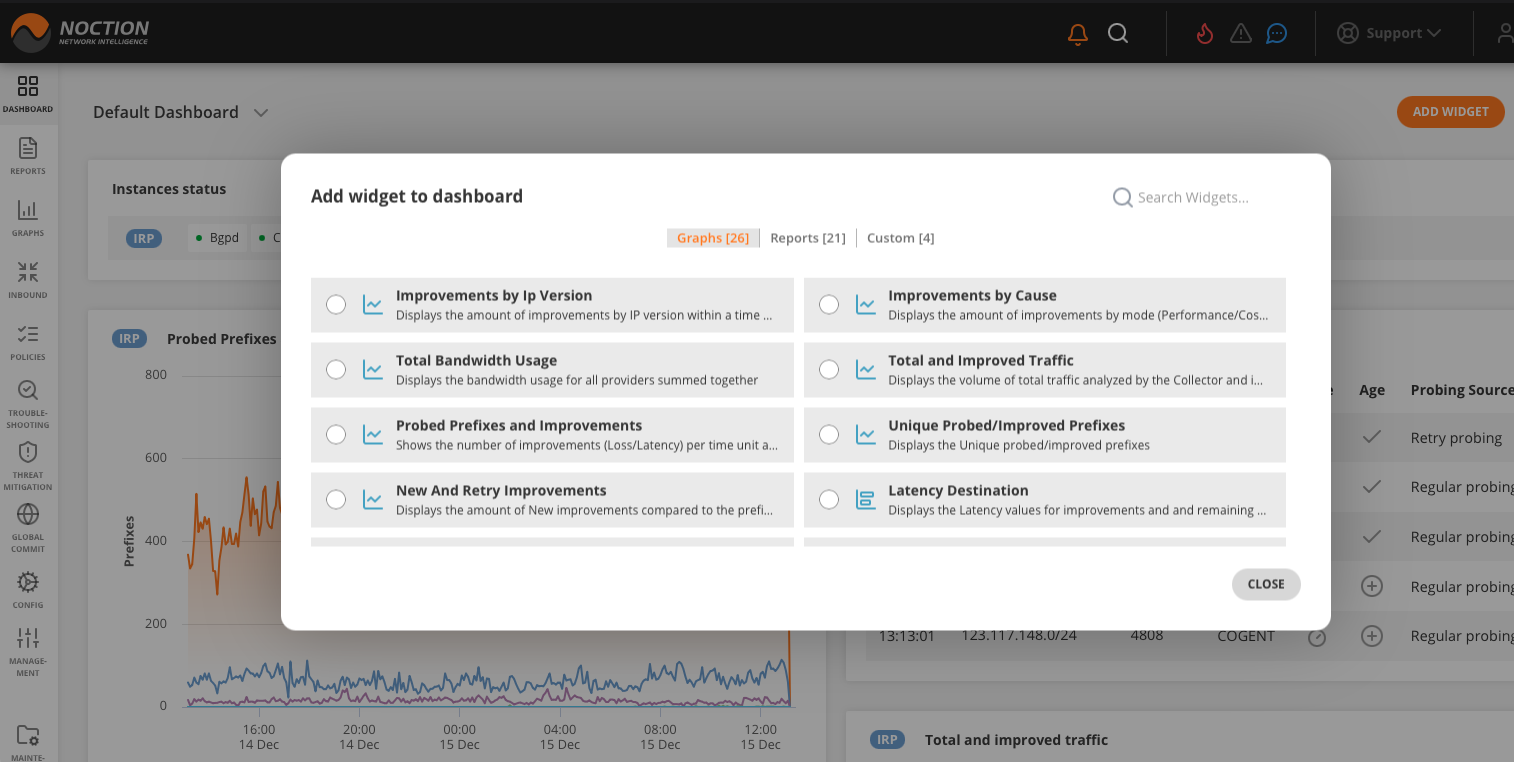
Figure 3.3.5: Widgets Library
You can change the widget’s name, refresh interval, timestamp interval as well as the actual IRP instance it is referring to by clicking the Settings icon in the widget’s top right corner. Use the rest of the icons to correspondingly refresh, minimize or remove the widget from a dashboard.
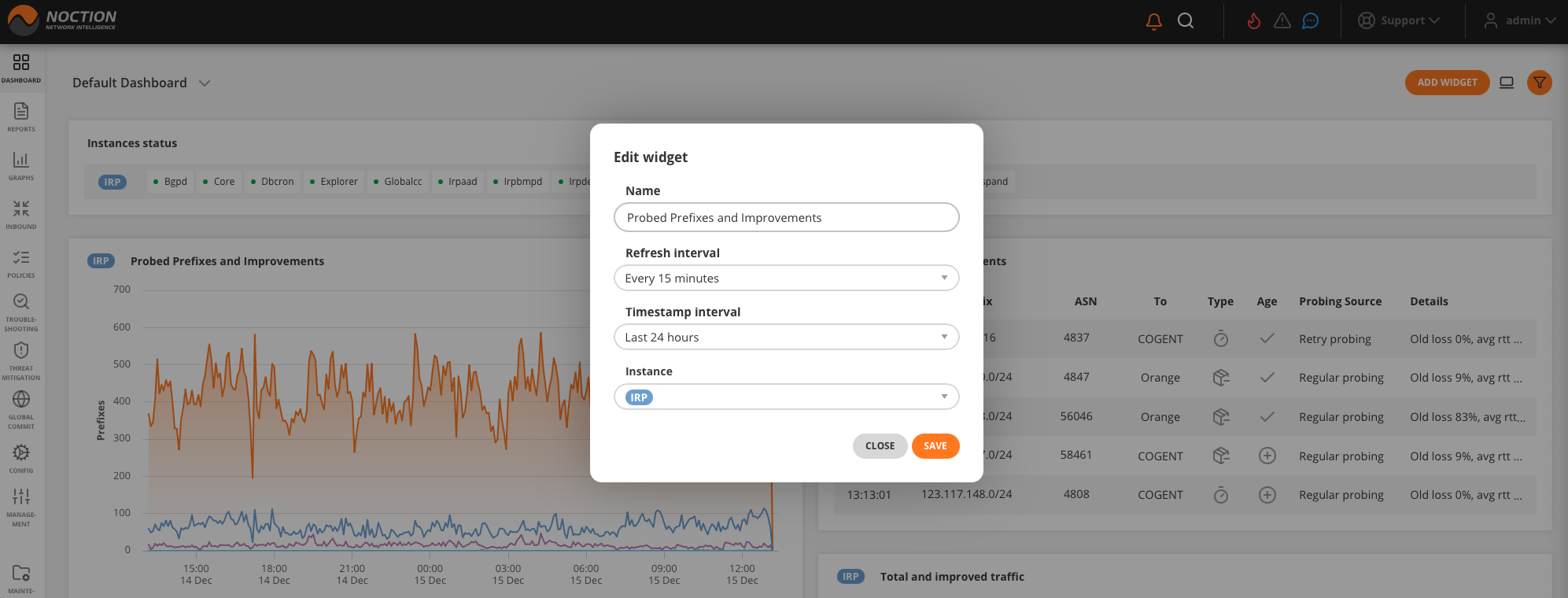
Figure 3.3.6: Editing Widgets